How to check for errors in the output
Home / General Support / How to check for errors in the output1. Opening the output
To open the output window, go to the View tab in Roblox Studio and then click on the Output button there

2. Checking for errors
Errors in the output are shown as red text, with a few lines of blue text under it. All of those lines are useful, but the red text is the most important. Note that errors will only show up once you start the game, or when you press a button that causes the error
In the screenshot below you can see an example error, caused by GLights. Some errors have nice descriptions that explain how to solve the problem, but often they're caused by stuff I didn't think of and don't have pretty descriptions.
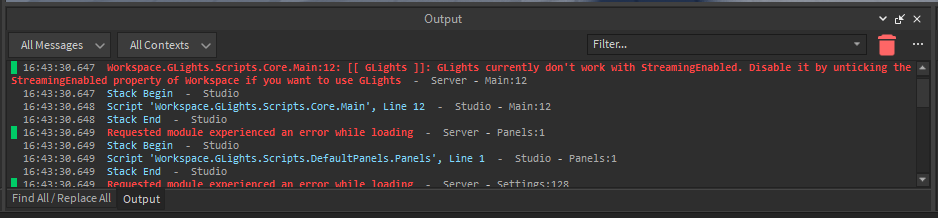
You can see in the blue text that the error IS coming from GLights, which is very useful when filtering out useless errors
Knowing the output errors is very useful, as it tells you exactly what's wrong. Even if you don't know what the errors mean (I don't blame you), you can still send them to me and I'll have a lot easier time trying to figure out what's wrong