How to set up and use StacyPilot
Home / StacyPilot / How to set up and use StacyPilot1. Installing the plugin
Go to https://create.roblox.com/marketplace/asset/10363696337/StacyPilot and install the plugin
2. Inserting StacyPilot
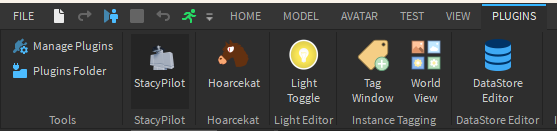
When in Studio, go to the Plugins tab and select StacyPilot
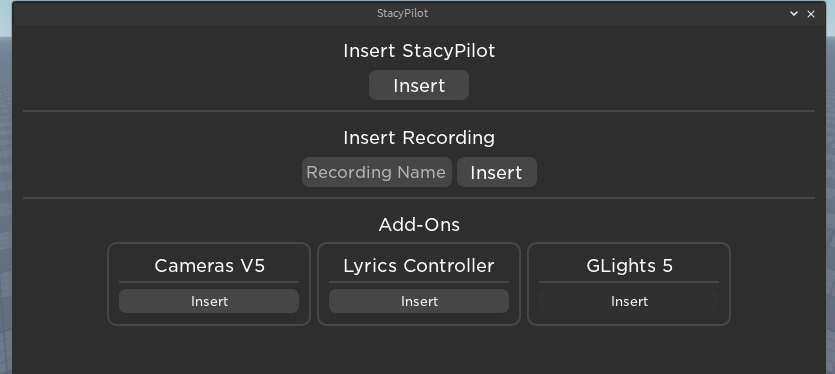
In the window that pops up, press Insert under Insert StacyPilot

3. Enable Studio Access to API Services
This is needed to insert recordings or to record in Studio
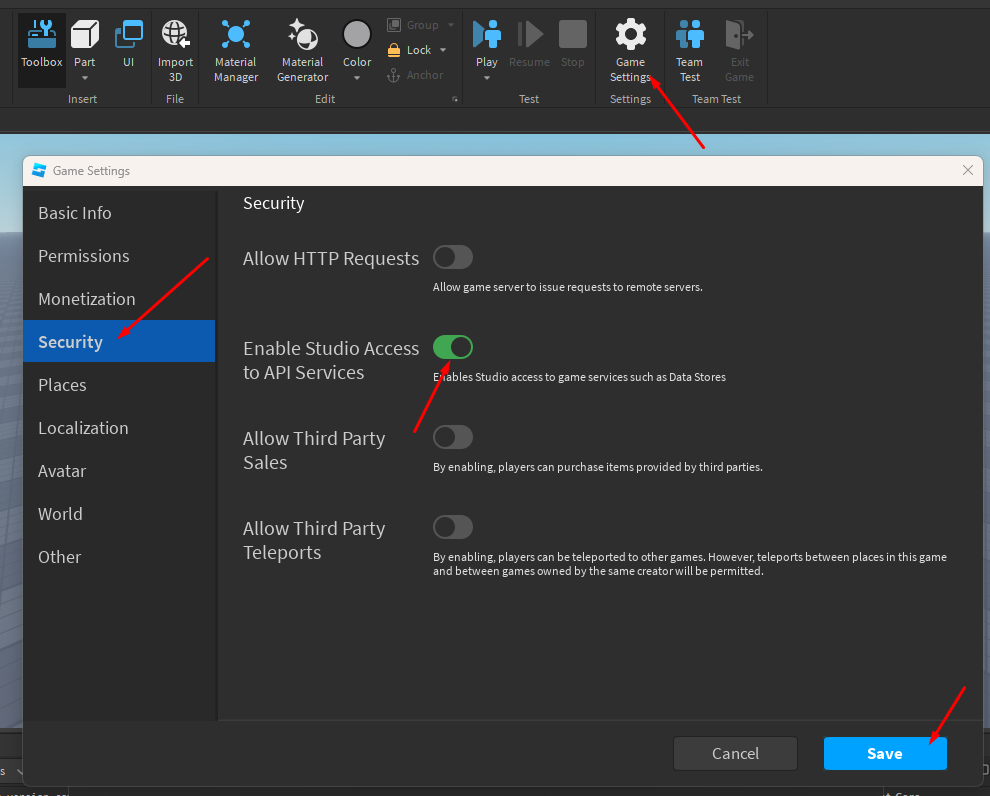
First, click on Game Settings, then go to the Security tab and tick Enable Studio Access to API Services. Then click save
4. Inserting addons
StacyPilot can't recording anything by itself. You need to insert addons for stuff you want to record. There are official addons for my products available in the plugin.
For example, if you want to record GLights, open the plugin and press Insert under GLights 5
Note that some addons require special actions to be taken or are not perfect, for example:
- Cameras v5 don't record drone movement
- GLights need the
UniqueNamesetting to be different for every panel
5. Recording
In game, go to the New Recording section and press Start
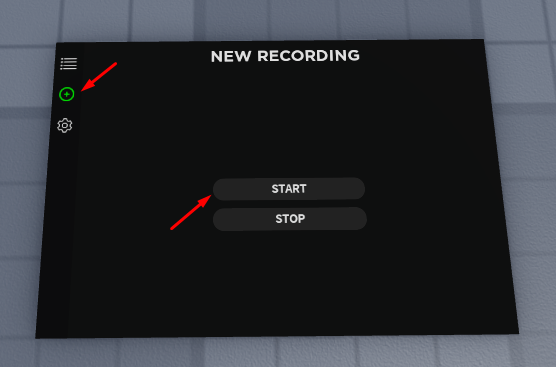
When you're done, press Stop and insert the name of your recording. Keep it short.
6. Inserting a recording
In Studio, open the plugin, insert the name of the recording and press Insert
